

Have you noticed that dragged Civil 3D labels don't always justify text the way you expect? By adjusting the Dragged State settings, you can control how label text is displayed and justified whenever a label is repositioned
Civil 3D label styles can retain or modify their text justification when moved from their default positions. In the example below, alignment labels demonstrate the different behaviors:
• Top: Label at its default location with centered justification.
• Bottom: Labels dragged to the left and right while retain the default (As Composed) centered justification.
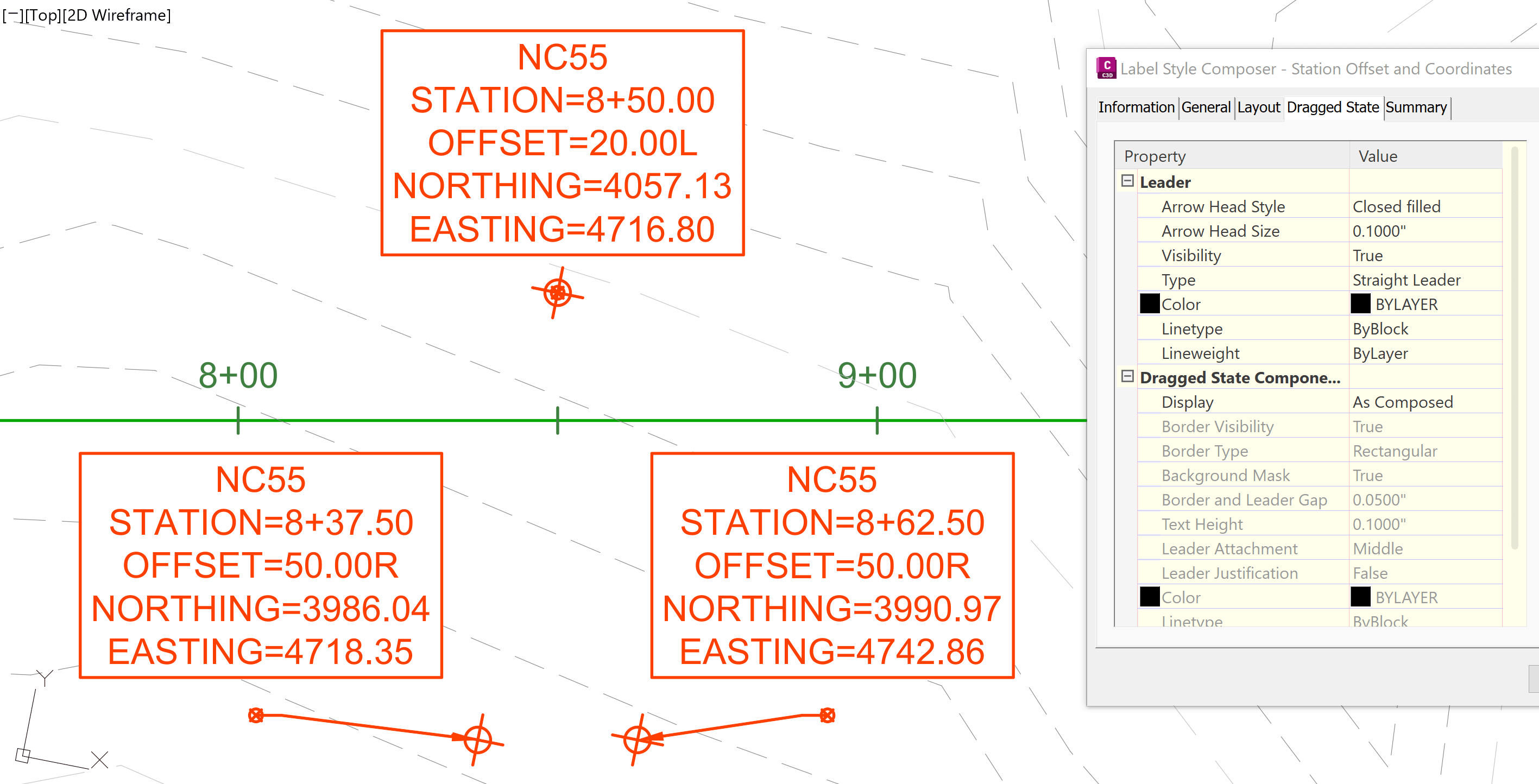
Civil 3D also provides options to change the default “As Composed” behavior. To control how labels appear in their dragged state, from the Label Style Composer dialog box → Summary tab → Dragged State Components section:
1. Display:
a. As Composed: the dragged label will default as it was created, keeping the look of the Layout tap
b. Stacked Text: the dragged label will stacked text vertically, dropping Block and Line components
2. Leader Justification:
a. True: Text is left justified when the leader is on left, and right justified wen the leader is on the right
b. False: Text is always left justified
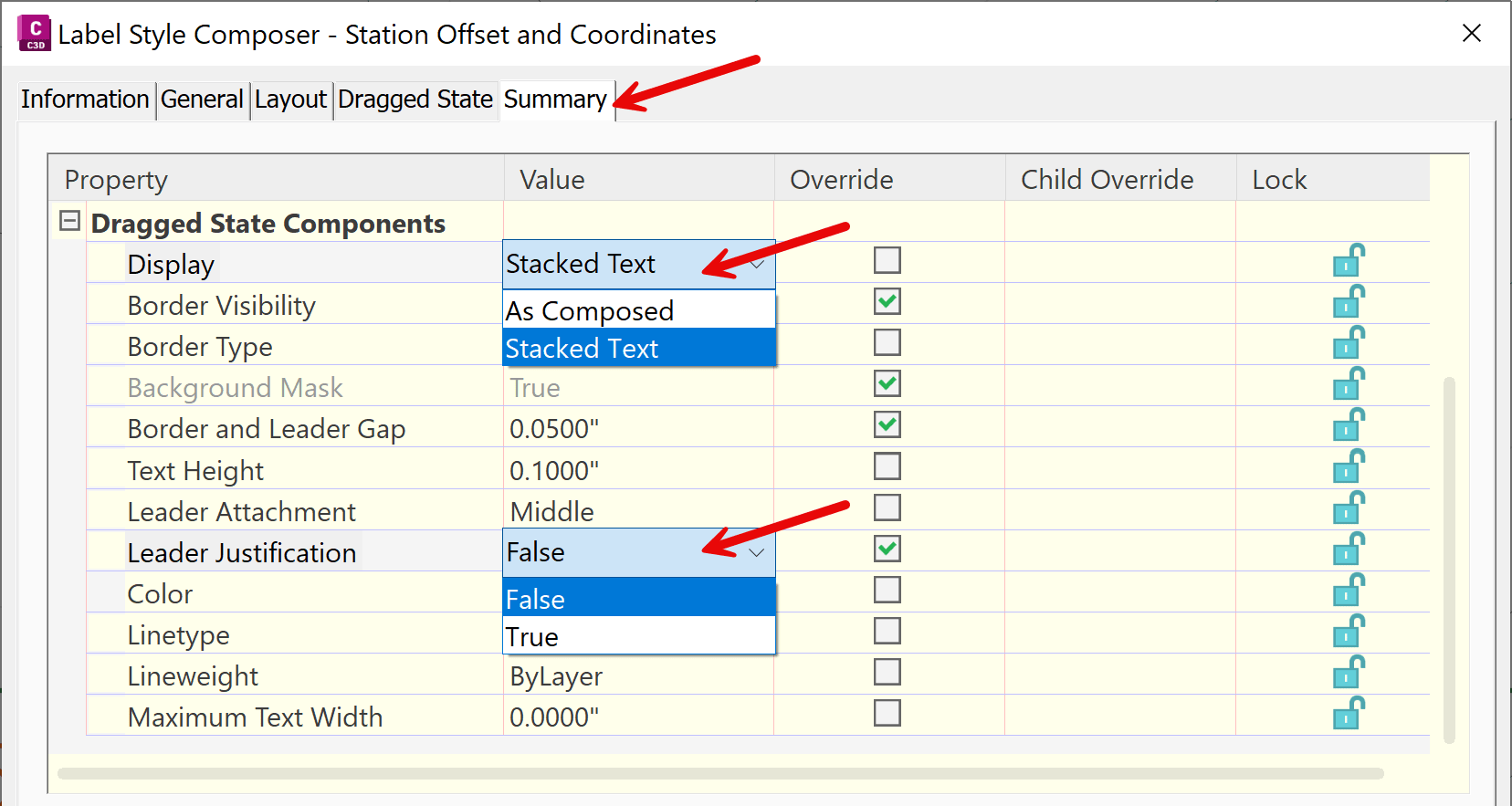
When selecting the “Stacked Text” as the Display option, the “Leader Justification” section becomes available.
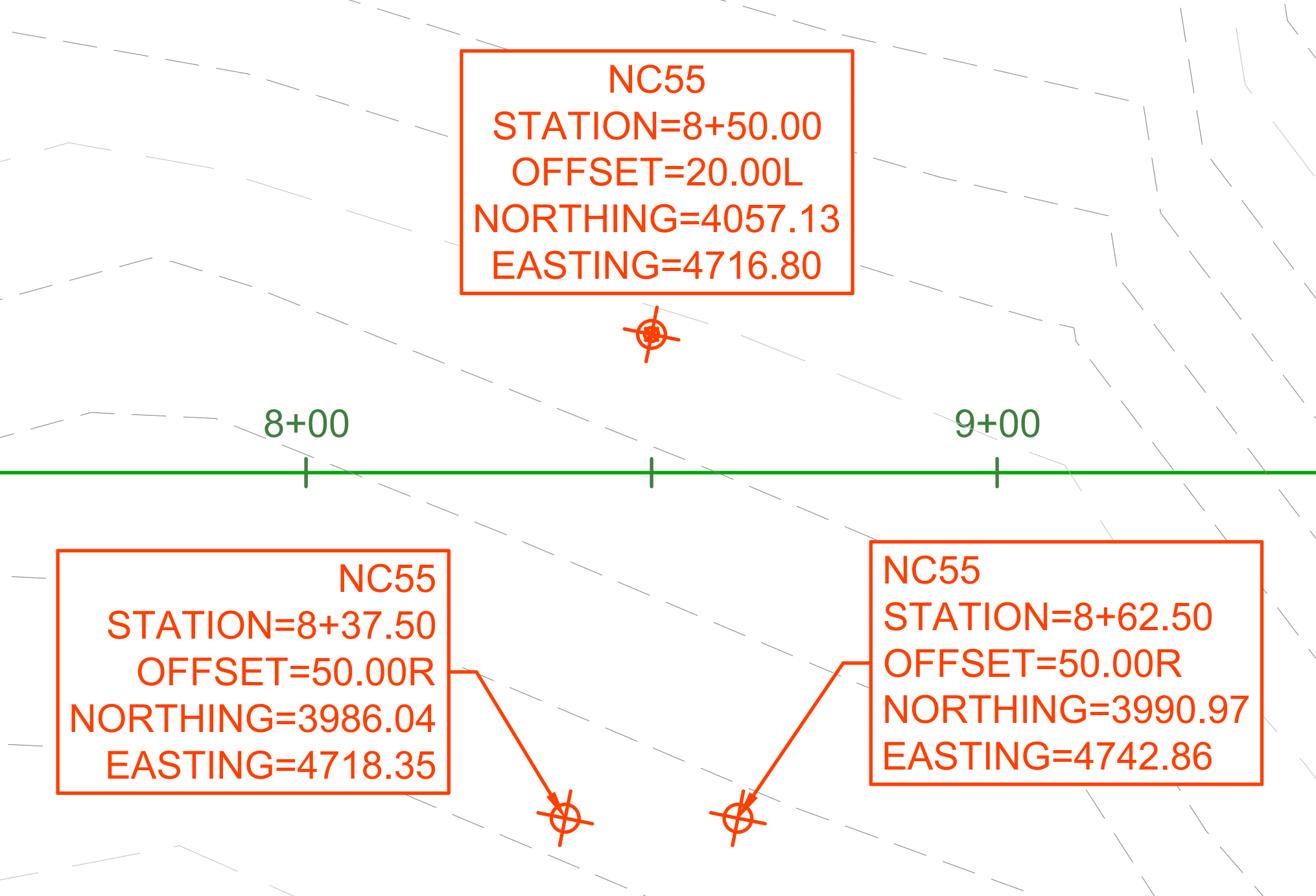
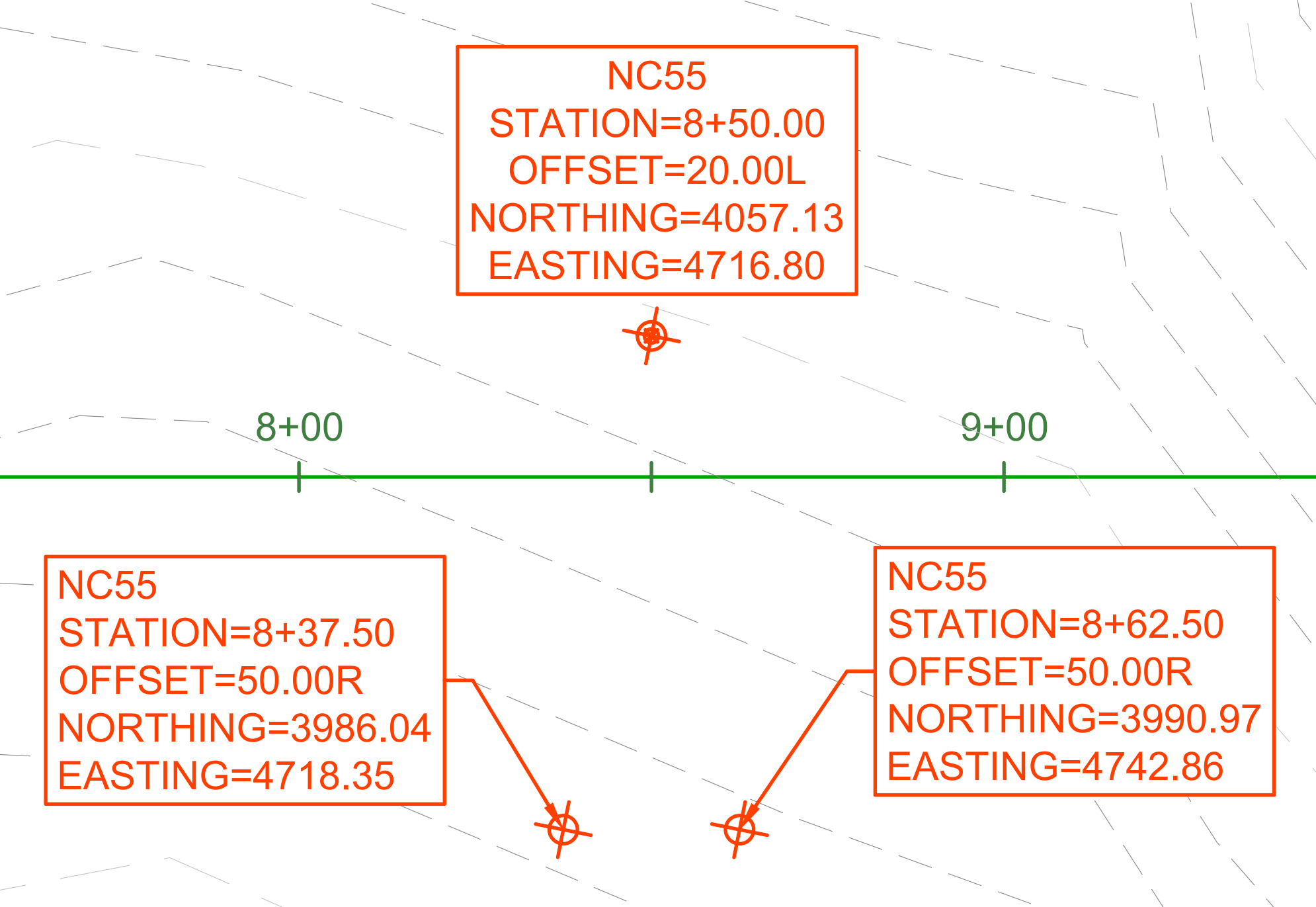
In the example below, the default label is center-justified above the alignment. After the label is dragged, below the alignment, to either the left or right, the text justification changes based on if its placed to the left or right of the marker.
|
Leader Justification: True |
|
Text is left justified when the leader is on left, and right justified when the leader is on the right
|
|
Leader Justification: False |
|
Text is always left justified
|
By understanding these Dragged State display and justification options, you can create cleaner, more consistent annotations and configure label styles that align with your organization's drafting standards.
About the Author
More Content by Leo Lavayen


