

Add functionality and resources for CAM in Fusion
Fusion CAM is already a powerful tool. However, when starting out, you typically have to build tool libraries or source models of your workholding to check for collisions. Because we all want faster ways to access tooling and integrate workholding into our programming, these manual steps can feel like a bottleneck.
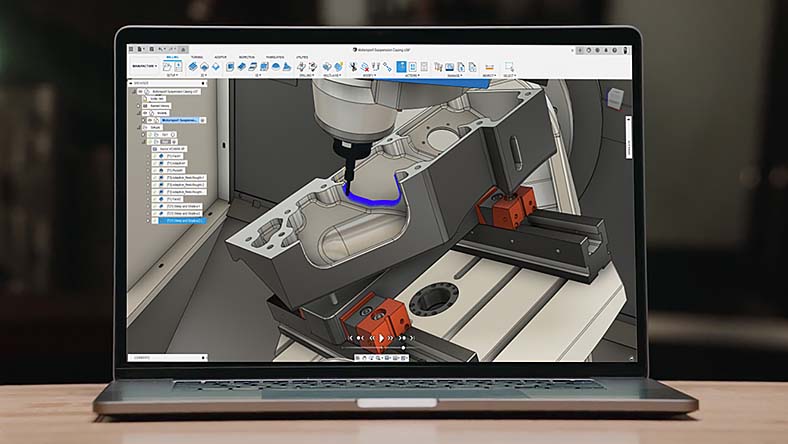
Fortunately, the Autodesk App Store is an excellent, often overlooked resource that addresses this. It hosts a variety of specialized add-ins designed to extend the capabilities of Autodesk applications. Let’s look at a few available for Fusion CAM that can help streamline your workflow and get you up and running much faster.
Machine Vendor Add-ins
With the flexibility of Integrated CAD/CAM; adds the flexibility of being able to communicate right with you machines on the shop floor. Being able to send programs to your milling machines or lathes can now be done from right in your CAM software. Even being able to check on the status of those machines through the add-ins.
Haas Driver
The Autodesk® Haas Driver® for Autodesk® Fusion® provides instant productivity for users with Haas Milling Machines equipped with the Haas NGC controller. The software features an innovative workflow that automatically detects Haas machines on a shop network and adds them directly to the Fusion machine library. By reading individual machine data, it creates an accurate configuration of settings and optional equipment to ensure NC programs run correctly.
Haas Driver download link.
Mazak Add-In
The Mazak Add-In allows you to post your EIA program and export tool, part, fixture and stock geometry from Autodesk® Fusion® into a folder which can be transferred to your Mazak machines or to Mazak Smooth CAM Ai through the Mazak Smooth Project Manager. Also, you can connect to your Mazak machines through the MTConnect protocol and view the current state of your machine(s).
Mazak Add-In download link.
Omax Intellicam Add-In
This addin allows a user to take a part seamlessly from Fusion and put it into the Omax Intellicam software to create cutting paths or into Omax Make for cutting.
Omax Add-In download link.
Tooling Vendor Add-ins
The ability to have access to tooling and workholding vendors right in your CAM/Design software is a game changer. This allows not just ordering abilities, but holds the ability to re-order tooling or workholding quicker instead of having to spend a bunch of time trying to find the links again. Below are a few of those addins that can help with those capabilities.
5th Axis: Workholding Intelligence
This add-in integrates the 5th Axis Machine Workholding Configurator directly inside Autodesk Fusion, allowing users to filter workholding options based on their specific machine and table size. It features an integrated checkout, machine-aware filtering, and real-time 3D previews so you can purchase RockLock® plates, dovetail fixtures, and modular vises without leaving the software. Additionally, users can instantly start configuring without signing in, saving and reusing configurations to accelerate future projects and reduce setup time.
5th Axis add-in download link.
Haas Tooling Add-In
Here you get the ability to discover, manage, and purchase Haas tooling straight from within Fusion. With this you can generate tooling carts from existing documents, and search Haas's extensive tooling catalog and then move directly into purchasing from within Fusion.
This allows you to standardize easier on tooling and gives direct purchasing access to the tooling that you are using from within your CAM software.
Haas Tooling download link.
ISCAR Tool Advisor for Autodesk Fusion
The ISCAR Tool Advisor for Autodesk® Fusion® helps users find the ideal cutting tool for manufacturing their part and easily exports a tooling shopping list to make it easy to get a tooling quote.
Download link.
Helical Solutions Resources
The Helical Solutions Resources add-in allows you to easily add Helical Solutions tools to your Autodesk® Fusion® tool library.
Download link.
Remember, these are just a few examples of options that are out there. Go check out the Autodesk app store and see if you can find something there that may solve a problem in your day to day.


