How to Download Revit Libraries

Issue:

I need to download the Revit content and family libraries or extra Revit content.

Solution: 

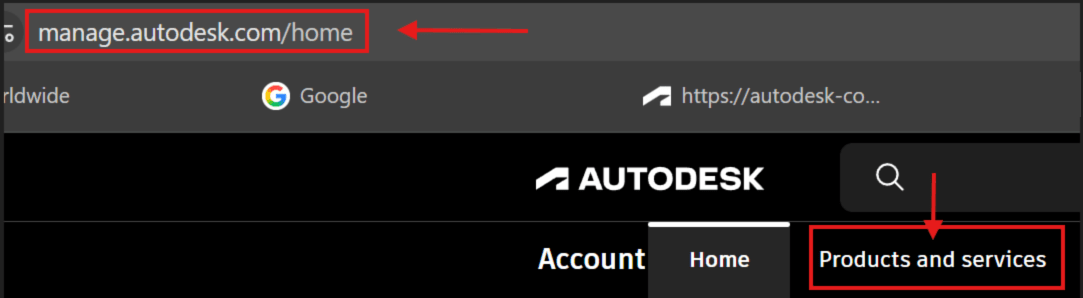
  1. Open your Internet browser and go to https://manage.autodesk.com
  2. Click on Products and services 

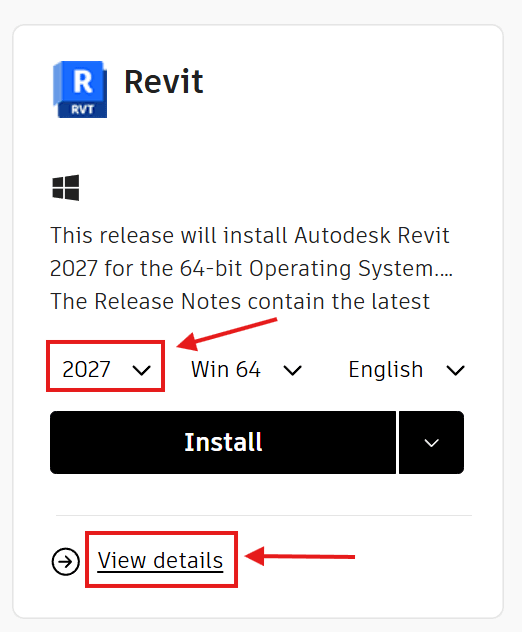
3. Find Revit, choose the version, such as 2027, then click on View details.

Note: The version can also be changed on the next screen.
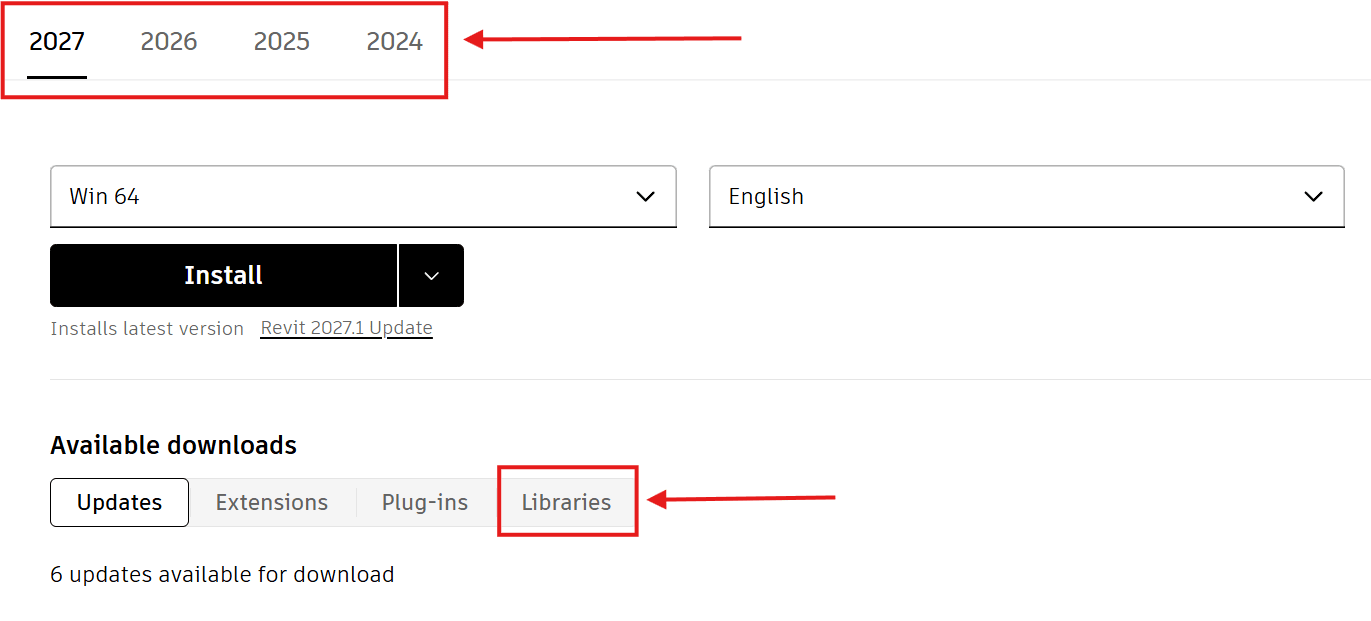
4. Check to make sure the version of the Revit libraries is correct, then click on the Libraries button.
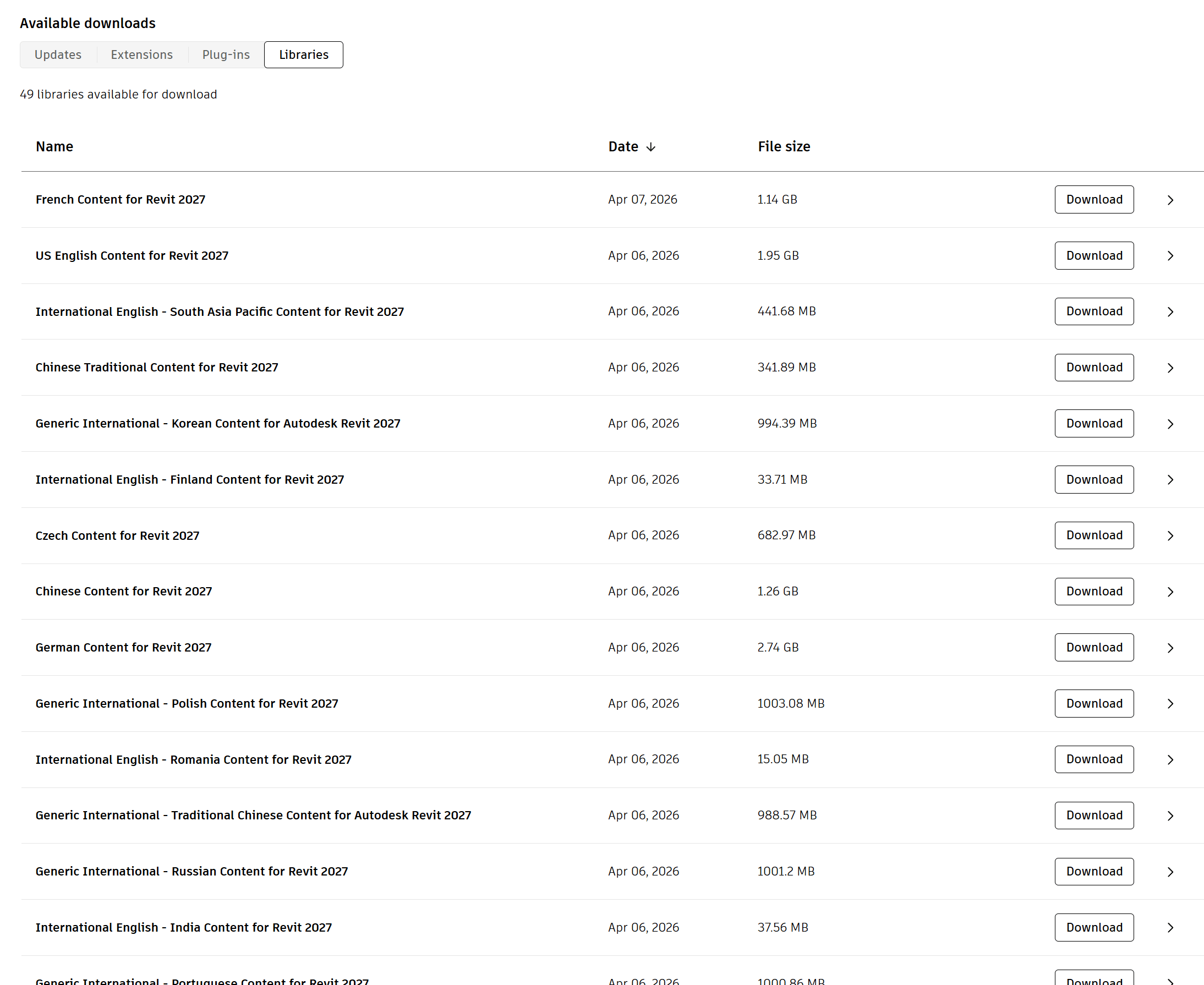
5. You will now see a long list of the Libraries that you can download. For Revit 2027 there are 49 libraries available for download at the moment.
6. When the download is complete, double-click the downloaded EXE file to start the content installation.
Note: Content is installed to the default location, C:\ProgramData\Autodesk\<RVT Release Year>\Libraries. 

About the Author

Ken Williams

Installation Technical Support Specialist<br><br>Ken Williams has over 20 years of experience as a systems administrator helping organizations with installation, configuration, and maintenance. At IMAGINiT, Ken puts his knowledge of Microsoft, SQL, servers, and Autodesk to work ensuring clients are able to stay up-and-running, install their software easily, and maintain their solutions.

Follow on Linkedin More Content by Ken Williams
Previous Video
Aligning Revit Deliverables with Owner Expectations

Learn how AEC and FM teams can better align Revit deliverables with real Owner expectations, operational ne...

Next Article
Autodesk Desktop Connector 2027 compatibility Issue

Revit 2025 hangs while opening a project file after installing Autodesk Desktop Connector version 2027.0.0.29.

Revit Classes Now Available

Check Schedule