Issue:
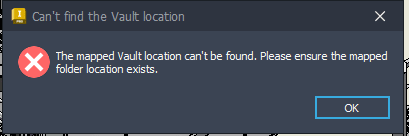
Inventor 2026 'Can't find the Vault location' error after installing the Vault Client 2026.4 update:
Causes:
The error is caused by the Vault Data Standard Add-In.
It can also be caused by an incorrect Workspace path in the project file.
Solution:
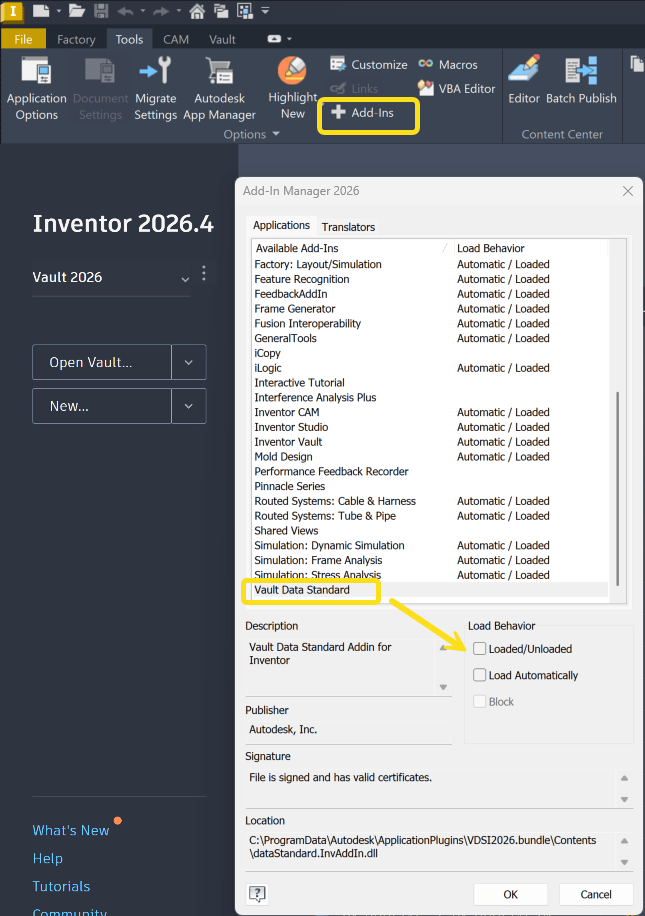
- If you don't use Vault Data Standard, unload the Add-In Manager 2026 on the Tools ribbon.
Uncheck 'Load Automatically' and 'Loaded/unloaded'
- If you use Vault Data Standard, see the following article to fix errors in Inventor and AutoCAD.
- Edit Default.ps1 located in C:\ProgramData\Autodesk\Vault 2026\Extensions\DataStandard\CAD.Custom\addins\Default.ps1 https://www.autodesk.com/support/technical/article/caas/sfdcarticles/sfdcarticles/Can-t-find-the-Vault-location-error-in-Vault-Data-Standard-after-Vault-2026-4-update.html
- Verify that your Inventor project file has the Workspace set to a relative path: https://www.autodesk.com/support/technical/article/caas/sfdcarticles/sfdcarticles/Vault-error-The-mapped-Vault-location-can-t-be-found-Please-ensure-the-mapped-folder-location-exists-during-Save-from-Inventor.html
How to uninstall Vault Data Standard:
-
- Using Microsoft Troubleshooter: https://resources.imaginit.com/support-blog/how-to-remove-vault-data-standards
- Using Uninstall/Reinstall: https://www.autodesk.com/support/technical/article/caas/sfdcarticles/sfdcarticles/How-to-uninstall-Vault-Data-Standard.html
- More on Autodesk's 2026 .NET 10 updates and product update requirements: https://resources.imaginit.com/support-blog/net-10-and-product-version-updates
- AutoCAD and Vault 2026 .NET 10 updates: https://resources.imaginit.com/support-blog/autocad-2026-exception-and-fatal-error
- AutoCAD/Vault 2025 .NET 10 updates: https://resources.imaginit.com/support-blog/autocad-and-autocad-verticals-2025-exception-and-fatal-error
About the Author
More Content by Joanna Gryszka