

Issue:
You would like to download Autodesk Products using browser download and you are not getting all the files downloaded.
Solution:
You need to turn off the pop-up blocker in your browser to get the complete download of all the Autodesk install files.
For Google Chrome  click here
For Microsoft Edge  click here
For Mozilla Firefox  click here
Chrome
- Open Chrome and go to the top right corner and click on the ellipsis (3 dots) and click on Settings.

- Next, click on “Privacy and security”

3. Click on “Site Settings”

4. Click on “Pop-ups and redirects”

5. Click “Add” on “Allowed to send pop-ups and use redirects”

6. Type [*.] Autodesk.com and click on the “Add” button on the bottom right.

7. After you click “Add” you should see the [*.]Autodesk.com URL under allowed. You should now be able to use the Autodesk browser download. You may have to restart your browser.

Microsoft Edge
1. After opening Edge, click the 3 dots in the upper right corner and choose “Settings”

2. Click “Privacy, search, and services”

3. Click "Site permissions”
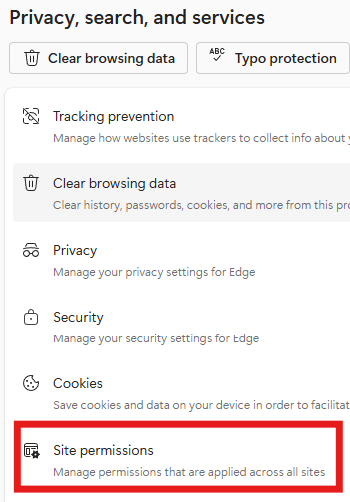
4. Click "All permissions"
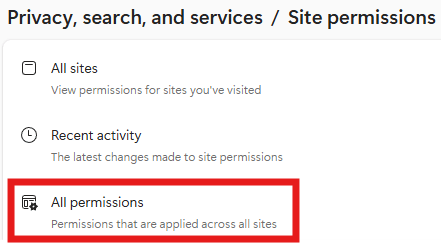
5. Click "Pop-ups and redirects"

6. Click “Add site” on Allow to send pop-ups and use redirects

7. Insert [*.]Autodesk.com and choose “Add”

8. You should now be able to use the Autodesk browser download. You may have to restart your browser.
Firefox
- Open Firefox and click the 3 bars in the top right corner and then click “Settings”.

- Click “Privacy and Security”.

- Scroll down to “Block pop-up windows” and click “Exceptions”.

-
Add Autodesk.com and click the “Allow” button.

- You should now be able to use the Autodesk browser download. You may have to restart your browser.
About the Author
Follow on Linkedin More Content by Ken Williams


