

Issue:
You want to run an Autodesk deployment silently so that no user interaction is required.
Solution:
Edit the .bat file found within the deployment. The .bat file will follow the naming conventions that you specified while creating your deployment.
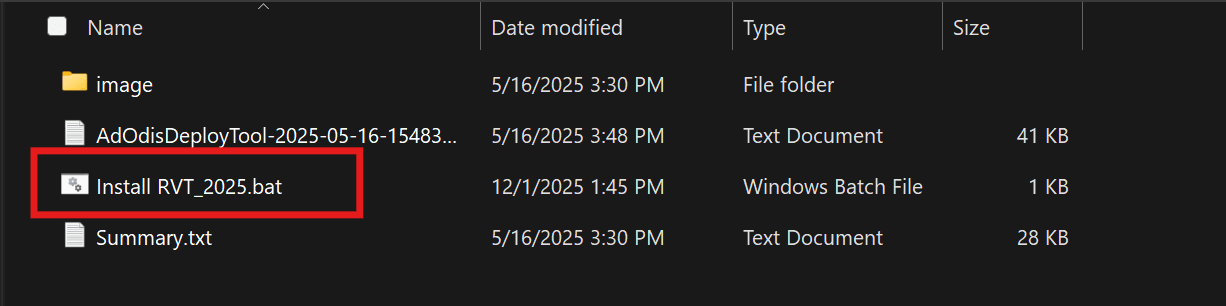
Editing the .bat file:
- Right click on the .bat file and open it with your preferred text editor.
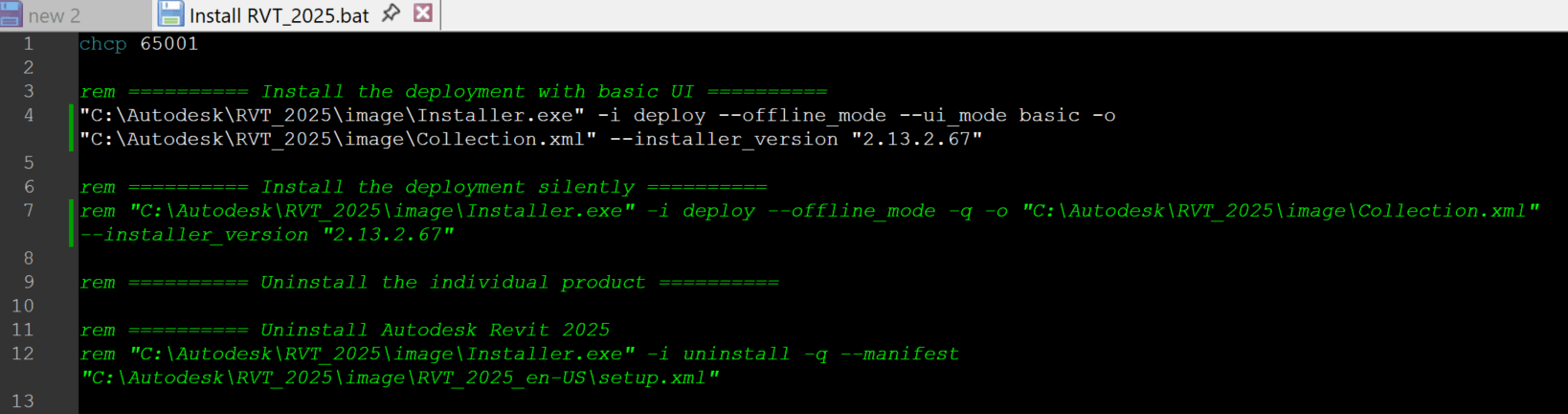
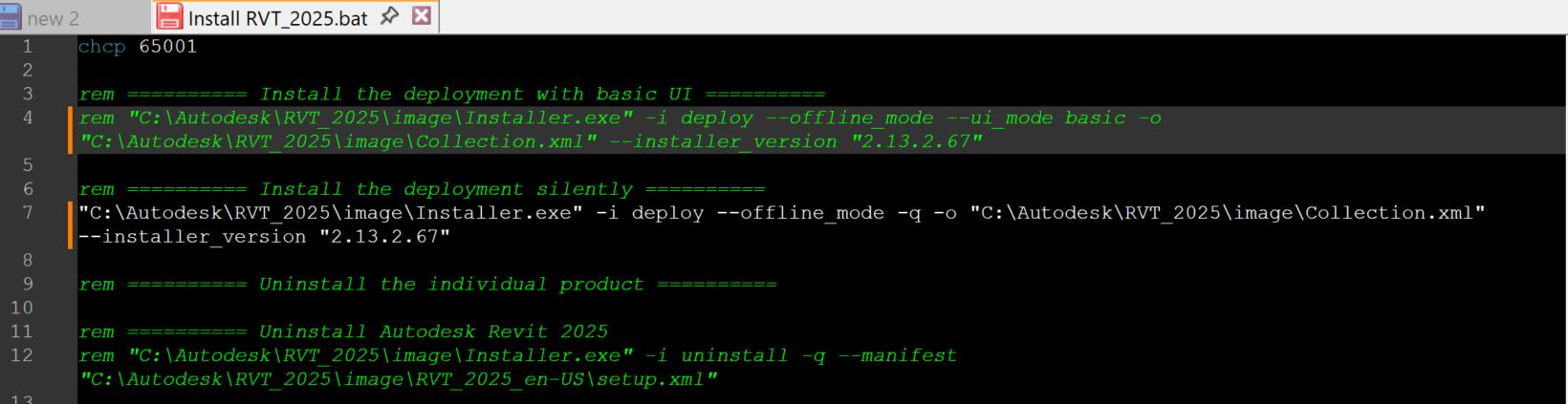
- The .bat file defaults to installing with the Basic UI. To change this you will have to add "rem" in front of the Basic UI install command.
- You will then need to remove the "rem" from the silent install command.
.Bat file installing with Basic UI:
.Bat file installing silently:
About the Author
Follow on Linkedin More Content by Derek Piccininni


