

Issue:
Users encounter the error:
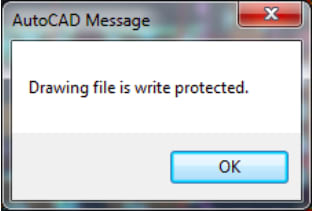
“Drawing file is write protected”
even when:
they have full permissions
no one else has the file open
the file worked fine in previous versions
Common symptoms:
Cannot save to network drives
Random save failures
Works in Civil 3D 2025 but not 2026
Works locally but not on server
This creates major workflow disruptions and risk of lost work.
Solution:
This issue is almost always caused by file locking + network latency, not permissions.
Step 1 — Test Local Save
Save the file to:
C:\Temp
If it works:
root cause = network / file locking behavior
Step 2 — Check for Lock Files (.DWL / .DWL2)
In the drawing folder:
delete any leftover:
.dwl
.dwl2
These can falsely signal the file is in use.
Step 3 — Avoid Working Directly on Network
Best practice:
Work locally
Copy back to network when done
Step 4 — Check Sync/Cloud Tools
If using:
Desktop Connector
OneDrive
Egnyte
Pause syncing while working.
Key Takeaway
This is not a permissions issue — it is a file locking + latency issue introduced/exposed more in newer Civil 3D versions.
Best Practice
Always edit drawings locally
Minimize real-time syncing
Keep network paths stable and short


