

Applies to:
All Civil 3D Product Years
Issue:
You have a source file where names have been changed, such as Road Names (alignments), Surface Names, Pipe network names, etc. and you need to update the names in the drawing that consume those items as Data References (DREF’s)
Solution:
This process involves a few steps to ensure that all the data is properly changed (i.e. names) across all the drawings involved.
1. Update the name of the alignment (in the source DWG)
2. Save the file
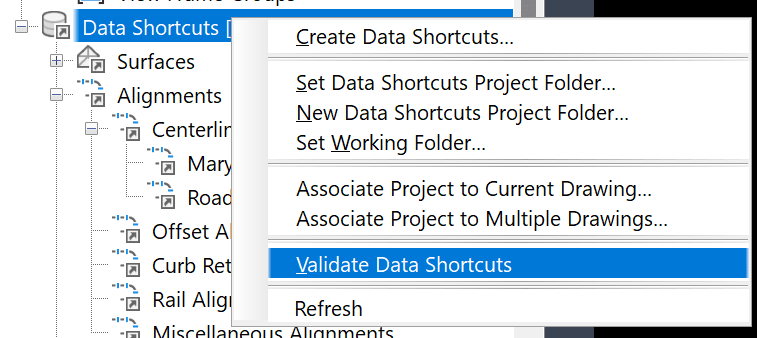
3. Right mouse click on the Data Shortcuts and click Validate Data Shortcuts
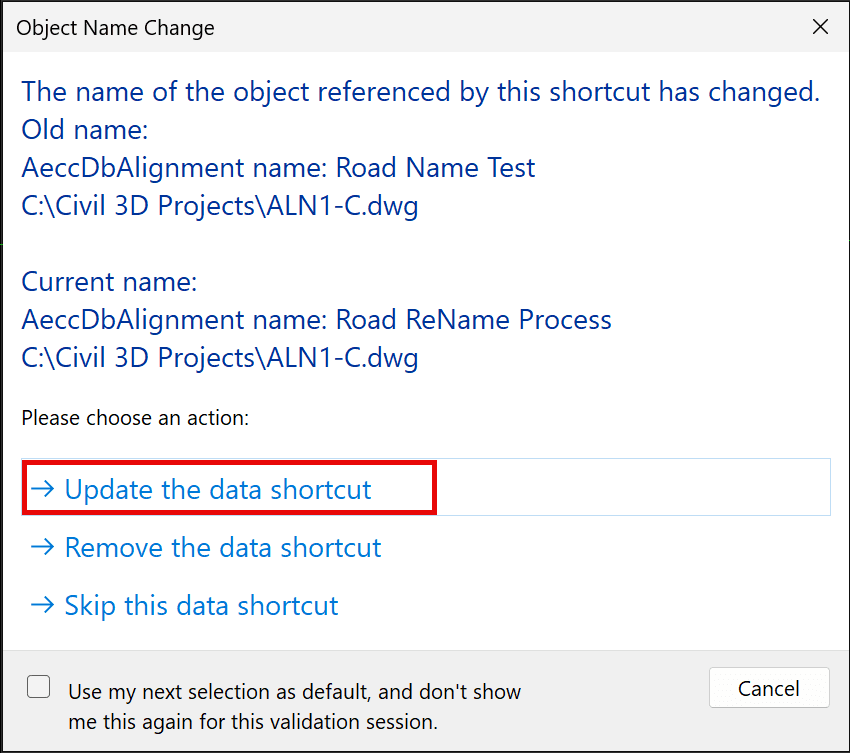
4. This is the pop up, and you select Update the Data Shortcut:
5. Now, open a DWG that references the old Shortcut name
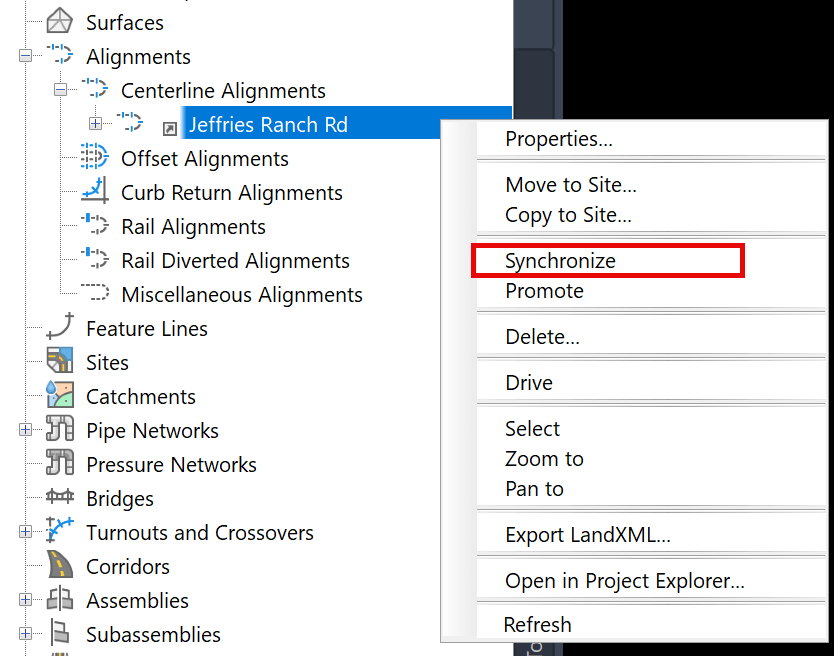
6. Right mouse click on the changed data shortcut name and select Synchronize:
7. This screen comes up and select: Update the reference name:
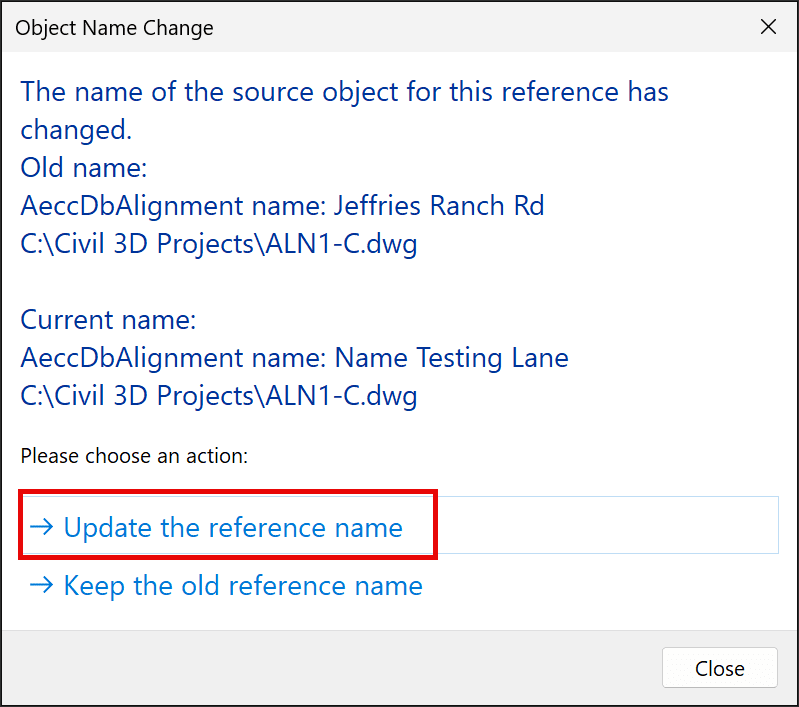
That will synch the data shortcut and update the name to the new one for all labels / data associated to that item
About the Author
Follow on Linkedin More Content by Ryan Wunderlich


