Civil 3D Description Keys Not Applied to Existing Points

Applies to:   Civil 3D

Issue: COGO points are already in the drawing, but the expected point styles, label styles, symbols, or full descriptions from a Description Key Set are not being applied.

The Description Key Set may have been added or modified after the points were imported.

Causes: Description Keys are normally processed when points are created or imported. Changing or adding a Description Key Set does not necessarily update points that already exist in the drawing.

Solution:

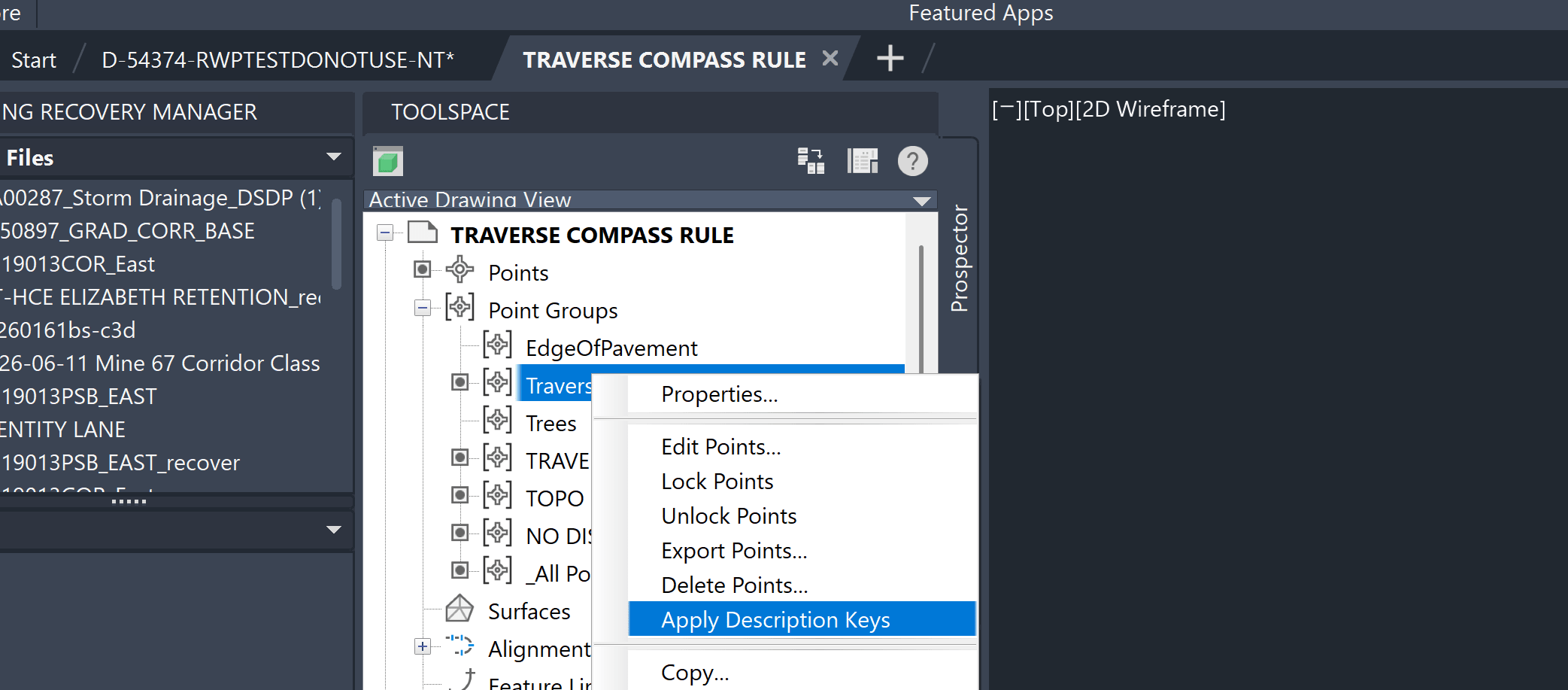
1 – Open Toolspace > Prospector.

2 – Expand Points.

3 – Select the COGO points that need to be updated.

4 – Right-click the selected points.

5 – Select Apply Description Keys.

6 – Civil 3D will reprocess each point's Raw Description against the current Description Key Sets.
 

If the expected style is still not applied, go to:

Toolspace > Settings > Point > Description Key Sets

Verify that the point's Raw Description matches the appropriate Description Key Code.
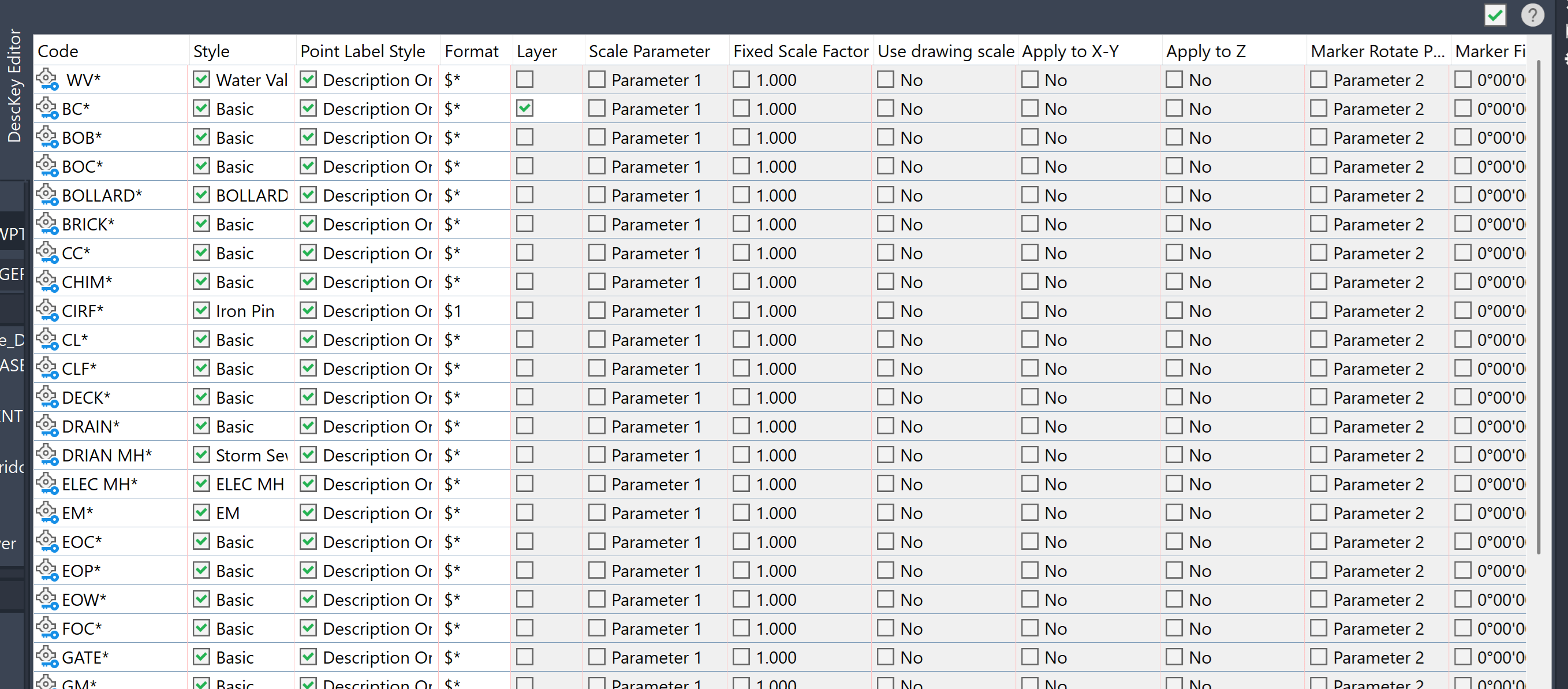
For example, a Description Key Code of:

EP*

can match Raw Descriptions such as EP, EP1, or EP EDGE.

Description Keys are matched against the Raw Description, not the Full Description.

Previous Article
Civil 3D Data Shortcut Profile Create Reference is Grayed Out

When attempting to create a Data Shortcut reference to a profile, Create Reference is grayed out even thoug...

Next Article
Civil 3D: Point Objects Referencing Alignment Data

Do your Civil 3D COGO Points to reference alignment data? This post explores several ways to retrieve stat...

Civil 3D Classes Now Available

Learn More