Issue:
Users report that mapped materials disappear when opening the model in Enscape while working on an Autodesk Construction Cloud (ACC) project.
Causes:
Materials in ACC are mapped through Autodesk Desktop Connector. By default, Desktop Connector routes the workspace cache to each user’s profile directory. When materials are mapped from a user-specific profile folder, other team members cannot access the same path, causing Enscape to lose the material references.
Solution:
Resolving this issue requires updating the Autodesk Desktop Connector workspace location for all team members working on the project.
The workspace should be relocated to a shared, common directory instead of a user-specific profile folder. This ensures that the folder paths are consistent and accessible across all users.
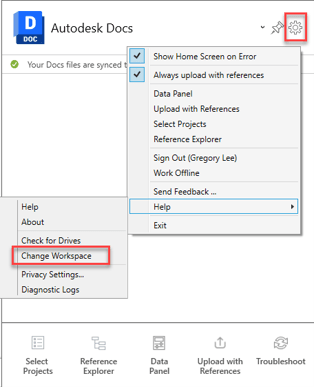
Example:
Before:
C:\Users\[user]\DC\ACCDocs\[Project Folder]
After:
C:\ACC Project
Once the workspace location has been updated, Enscape will be able to reference materials using a common path, allowing materials to be located correctly from the Autodesk Desktop Connector drive across different users.
About the Author
Follow on Linkedin More Content by Gregory Lee