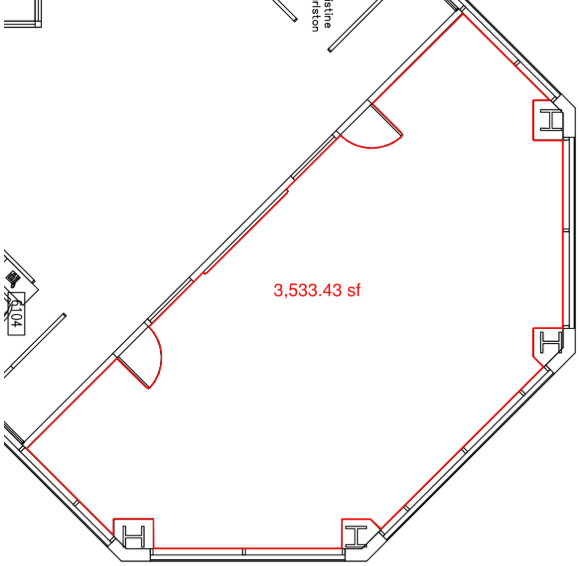
The Dynamic Fill tool automatically creates Spaces and measurement markups from shapes on the content layer. It detects shape boundaries to generate area, perimeter, volume, polylength, or polygon measurements.
When enabled, markups can be temporarily hidden to improve visibility of the content layer. This setting can be adjusted in Measure Preferences.
Below is an example demonstrating how to perform a takeoff for a non-uniform area.
Go to Tools > Measure >  Dynamic Fill or press J on the keyboard. The Dynamic Fill toolbar appears.

To add a temporary boundary within the desired shape, select Add Boundary, then click two or more points on the drawing. Complete the boundary by double-clicking the final point or pressing ENTER.
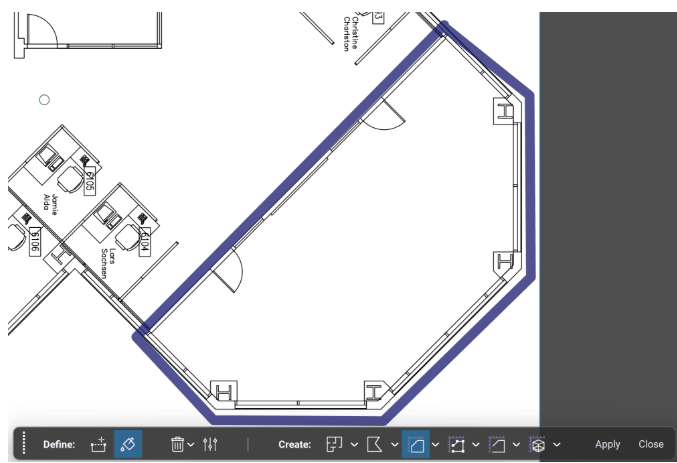
Select Fill, then click and hold within the boundary of the desired shape. The Dynamic Fill tool will highlight the area, stopping automatically at boundary edges or when the mouse button is released.
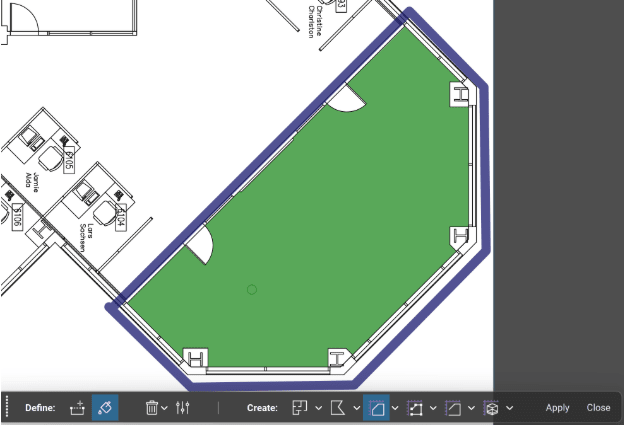
Click Apply to create the Space and/or markups.
You have now created an Area Take Off for a room with non-uniform geometry.